

ExplorerPatcher Customize Windows 11 Taskbar & Start Menu
Restore the classic Windows 10 taskbar, enable the full right-click context menu, and refine File Explorer functionality. Download ExplorerPatcher to bring back familiar behavior with reliable controls and a lightweight, fully reversible setup for Windows 11.
500K+
Downloads
15K+
GitHub Stars
99.9%
Uptime
ExplorerPatcher is a free, open source Windows utility that restores familiar and productivity focused shell features, including the classic taskbar with labels, full context menus, and refined File Explorer controls, without complex registry modifications.
Key Features of ExplorerPatcher
Classic Taskbar
ExplorerPatcher restores the Windows 10-style taskbar in Windows 11, enabling ungrouped icons, labels, and a familiar classic layout.
Start Menu
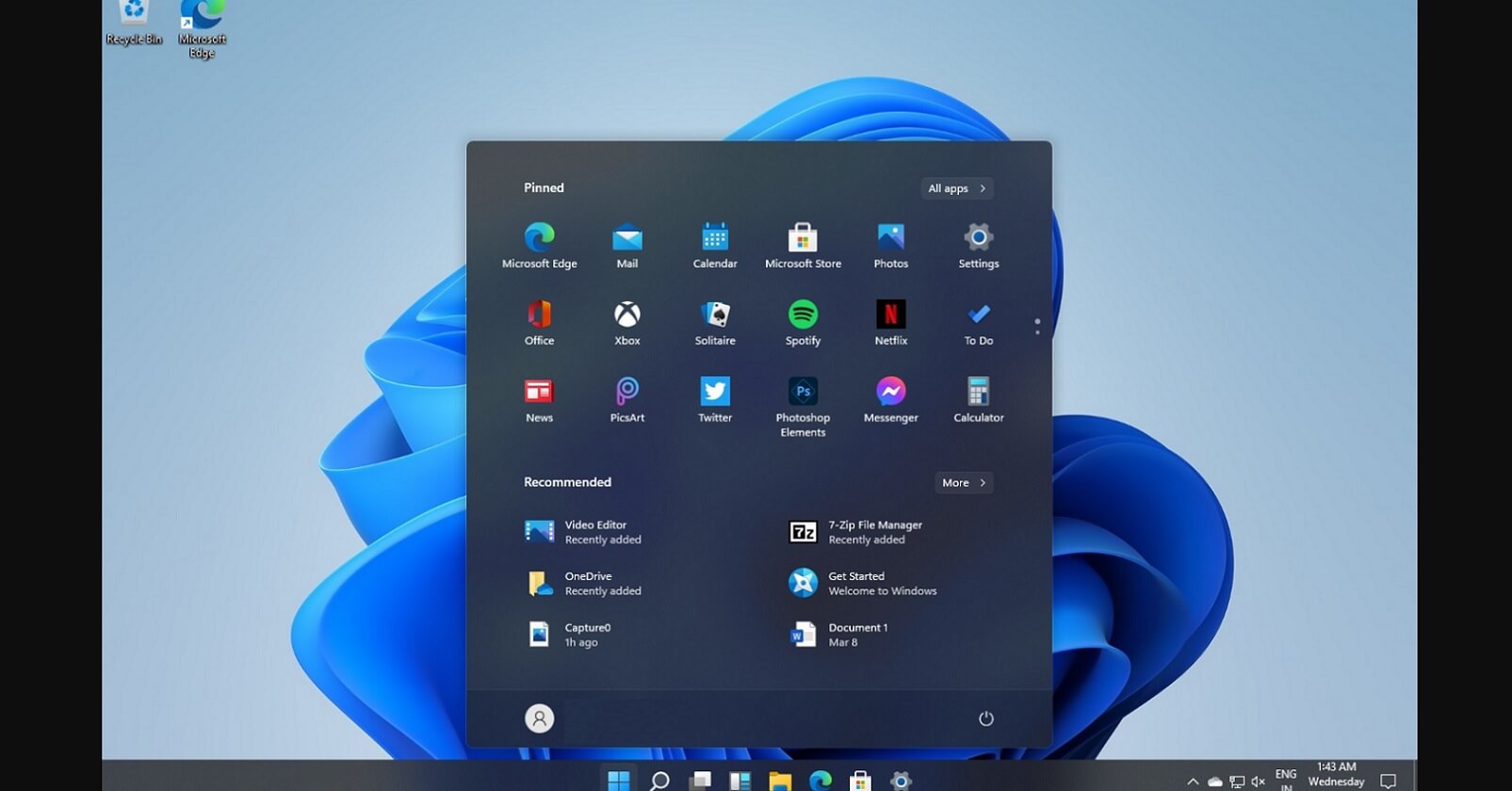
It allows switching between Windows 10 and Windows 11 start menus, offering customization options for layout, shortcuts, and quick access.
File Explorer
The tool brings back the classic ribbon interface in File Explorer, replacing Windows 11’s simplified command bar with detailed controls.
System Tray Controls
It revives traditional system tray behavior, showing all icons, allowing clock and network customizations, and improving accessibility for background apps.
Benefits of Using ExplorerPatcher
Familiarity for Windows 10 Users
Windows 11 introduced a redesigned taskbar, start menu, and File Explorer interface. While modern, many users found it less efficient or unfamiliar. ExplorerPatcher restores the classic Windows 10-style design, making it easier for users who are accustomed to the old layout to transition without relearning everything. This familiarity improves comfort and reduces frustration.
Improved Productivity with Ungrouped Taskbar Items
By default, Windows 11 groups similar app windows under a single taskbar icon, which can slow down workflow when switching between multiple windows. ExplorerPatcher allows users to ungroup taskbar buttons and show labels, just like in Windows 10. This small change makes multitasking smoother and faster, especially for people who frequently work with multiple documents or browser windows.
Lightweight and Open-Source
ExplorerPatcher is a lightweight program that doesn’t consume significant system resources. Unlike heavy customization software, it focuses only on restoring and tweaking Explorer, the taskbar, and the start menu. Since it’s open-source, users can trust that the community continuously reviews the code, ensuring transparency, reliability, and safety.
Frequent Updates and Community Support
The developer and community behind ExplorerPatcher actively maintain the project, releasing updates to keep it compatible with the latest Windows 11 patches. If Microsoft changes system behavior, ExplorerPatcher quickly adapts. Additionally, a supportive user community provides troubleshooting tips, guides, and feature requests—making it a reliable long-term tool.
How to Download and Install ExplorerPatcher
Official Source
The safest and most reliable way to get ExplorerPatcher is through its official GitHub repository (github.com/valinet/ExplorerPatcher). The developer regularly updates it to ensure compatibility with new Windows builds.
Step-by-Step Installation Guide
Visit the Official Releases Page
- Click the Free Download button, which opens the official GitHub releases page.
Download the Installer File
- On the latest release, click on “Assets” to expand it.
- Click on ep_setup.exe to download the installer.
Run the Installer
- Double-click the downloaded file.
- Windows might show a SmartScreen warning (since it modifies system files). Click “More info” → “Run anyway.”
How to Configure ExplorerPatcher
Once you’ve installed ExplorerPatcher, you can fully customize how Windows looks and behaves. The tool provides a built-in settings interface where you can tweak everything from the taskbar to File Explorer.
Accessing the Settings Menu
- Right-click on the taskbar after installing ExplorerPatcher.
- You’ll see a new option: Properties (or “ExplorerPatcher Properties”).
- Click it to open the main configuration window.
- The settings are divided into categories (Taskbar, Start Menu, File Explorer, System Tray, etc.).
Taskbar Customization Options
- Ungroup Taskbar Buttons: Choose between “Always combine,” “Combine when full,” or “Never combine.”
- Show Taskbar Labels: Restore text labels next to icons, like in Windows 10.
- Positioning: Move the taskbar to the top, bottom, left, or right of the screen.
- System Tray Icons: Show or hide icons for volume, network, and other system elements.
- Transparency & Appearance: Adjust taskbar style (classic, Windows 10 look, or modern).
Start Menu Modifications
- Classic Start Menu: Switch from Windows 11’s centered menu to the Windows 10-style left-aligned menu.
- Start Button Behavior: Customize what happens when you click the Start button (open classic Start, open Windows 11 Start, etc.).
- App List Display: Show or hide the full list of apps by default.
- Pinned Apps: Manage pinned apps in the same way as in older Windows versions.
File Explorer Settings
- Classic Ribbon UI: Replace Windows 11’s command bar with the Windows 10-style ribbon for quicker access.
- Navigation Pane Tweaks: Control visibility of Quick Access, Libraries, or OneDrive.
- Title Bar Changes: Restore classic title bar with accent colors.
- Compact View: Reduce spacing between items for a denser File Explorer layout.
Context Menu Changes
- Restore Classic Right-Click Menu: Replace Windows 11’s simplified context menu with the full legacy menu.
- Direct Access: Skip the “Show more options” step and display all options instantly.
- Menu Layout: Control spacing and style of right-click menus.
- Integration with Apps: Ensure third-party apps’ right-click entries (like WinRAR or 7-Zip) appear correctly.
Compatibility & Requirements (ExplorerPatcher)
- Windows Support: Best for Windows 11, limited use on Windows 10.
- Performance: Lightweight, no lag or heavy CPU/RAM use.
- Updates: Minor updates usually fine, but big Windows updates can break it (needs latest ExplorerPatcher release).
Frequently Asked Questions (FAQs)
What is ExplorerPatcher?
ExplorerPatcher is a free, open-source tool that restores classic Windows features such as the Windows 10 taskbar, start menu, and File Explorer ribbon on Windows 11.
Is ExplorerPatcher safe to use?
Yes, it is safe when downloaded from its official GitHub page. Since it is open-source, its code can be reviewed by anyone for transparency.
Does ExplorerPatcher work on Windows 10?
Yes, but it is mainly designed for Windows 11 to bring back features removed or changed in the new UI.
Can I restore the Windows 10 taskbar in Windows 11 with ExplorerPatcher?
Yes, one of its main features is restoring the classic Windows 10 taskbar with ungrouped icons and labels.
Does ExplorerPatcher bring back the File Explorer ribbon?
Yes, you can switch from the Windows 11 command bar to the classic Windows 10 ribbon interface.
Is ExplorerPatcher free?
Yes, it is 100% free and open-source with no hidden charges.
Where can I download ExplorerPatcher?
It can be downloaded from the official GitHub repository maintained by its developer.
How do I install ExplorerPatcher?
Simply download the installer file from GitHub, run it, and the changes will apply automatically. You can configure options through its settings panel.
Does ExplorerPatcher slow down the system?
No, it is lightweight and optimized. Most users report no performance issues.
Can I uninstall ExplorerPatcher easily?
Yes, you can uninstall it through the Control Panel or by using the provided uninstaller. Your system will return to default Windows behavior.
Does ExplorerPatcher support multiple monitors?
Yes, it allows proper taskbar and system tray behavior across multiple displays.
Will ExplorerPatcher stop working after a Windows update?
Sometimes Windows updates may temporarily break compatibility, but the developer frequently updates the tool to restore functionality.
Does ExplorerPatcher modify system files?
No, it doesn’t replace system files. It injects code into Explorer to adjust and customize UI behavior.
Can I use ExplorerPatcher to disable the new Windows 11 context menus?
Yes, it lets you switch back to the classic right-click context menus.
Is ExplorerPatcher better than StartAllBack or Start11?
ExplorerPatcher is free and open-source, while StartAllBack and Start11 are paid. The choice depends on whether you want free customization or extra premium features.
Can I update ExplorerPatcher automatically?
Yes, it supports automatic updates, or you can manually check GitHub for the latest release.
Does ExplorerPatcher allow grouping and ungrouping taskbar icons?
Yes, you can choose whether to group taskbar buttons or keep them separate with labels.
Can I move the taskbar to the top or sides of the screen with ExplorerPatcher?
Yes, it allows you to reposition the taskbar, a feature removed in Windows 11.
Is ExplorerPatcher open-source?
Yes, the source code is available on GitHub, and developers can review or contribute to it.
Who maintains ExplorerPatcher?
It is maintained by a developer known as valinet on GitHub, with contributions from the community.
ExplorerPatcher – Restore Classic Taskbar & Start Menu in Windows 11
Download ExplorerPatcher to restore the classic Windows 10 taskbar, start menu, and File Explorer in Windows 11 for a familiar, efficient experience
Price: Free
Price Currency: $
Operating System: Windows 10, Windows 11
Application Category: Software
4.8